Number Porting — moving your number to Kesher
A number you have today with another company can be moved to Kesher, and you keep receiving calls on it. You fill out a request on the porting page — even without signing in to the control panel, and even if you don't have a Kesher account yet — sign on the screen and attach documents. We check it and send it for processing.
Who carries out the porting
The porting itself is carried out for us by 015, so the request form you sign is its form, and it appears on it as the receiving operator. You submit the request through Kesher, and we follow it through until the number moves over.
Four porting types
Choose the type based on the number being moved and on what you want to happen with it after porting:
- Landline — a landline number (for example from Bezeq or HOT) that moves to the PBX.
- Virtual without SMS — a mobile number that becomes active through the PBX only. The mobile line and the SIM card are canceled.
- Virtual with SMS to email — like virtual, and SMS messages sent to the number arrive by email. The price is different, and the choice cannot be changed later.
- SIM / eSIM — the number moves to a cellular extension on the PBX. Before the request you need to purchase and activate the cellular extension, and in the request you state which extension to connect the number to.
Required documents
Every request needs an ID document and an invoice, and in some cases an additional document:
- ID document, both sides — a clear photo of the front and the back of the ID card. A corporation attaches a certificate of incorporation instead, or another document showing the corporation's details.
- Latest invoice or receipt from the current company (or proof of ownership) — from the last three months. Every number must have an invoice it appears on. One invoice can cover several numbers, and you can attach several invoices.
- Power of attorney — when the person signing is acting under a power of attorney and is not the line owner.
- Kosher number (under an agreement with the Rabbinical Committee) — every porting type also requires a declaration and undertaking to use a kosher number. The page adds it to the request, and you sign it with the same signature. You also need to fill in a full address and a mobile number for contact.
- A number currently with Hot Mobile (when porting to SIM or to virtual with SMS) — a Hot ownership transfer form is also required. For a private customer, we fill it in from the details in the request, and it is signed with the same signature. A business customer (identified by company number) attaches the form signed with the company stamp, with confirmation from an accountant or a lawyer.
You do not need to print or scan the porting form — the system fills it in from the details you typed and adds your signature to it.
Submitting the request on the porting page
The request is submitted on a separate page, Number Porting Request. The page is open to everyone, even without signing in to the control panel. If you are already in the control panel, you get to it from the menu: Porting Request, in the "Extensions and Routing" group. The page opens in a new tab. The request is divided into five steps, and the step bar at the top of the page shows where you are.
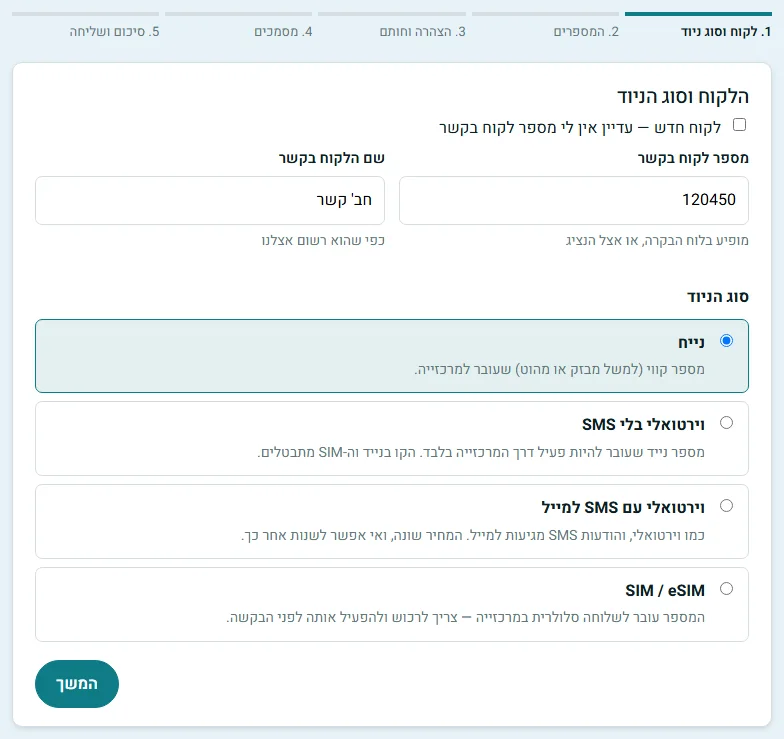
1. Customer and porting type
- Enter your Kesher customer number and Kesher customer name. Both are checked against our records, and they must match each other. The customer number appears in the control panel, or you can get it from a representative. If you are signed in to the control panel, they are filled in for you, and you can change them.
- Don't have a Kesher account yet? Check New customer — I don't have a Kesher customer number yet. We will set up an account for you as part of the porting, and you will fill in your details in the next steps. The checkbox appears only if you are not signed in to the control panel.
- Choose the porting type (step 2).
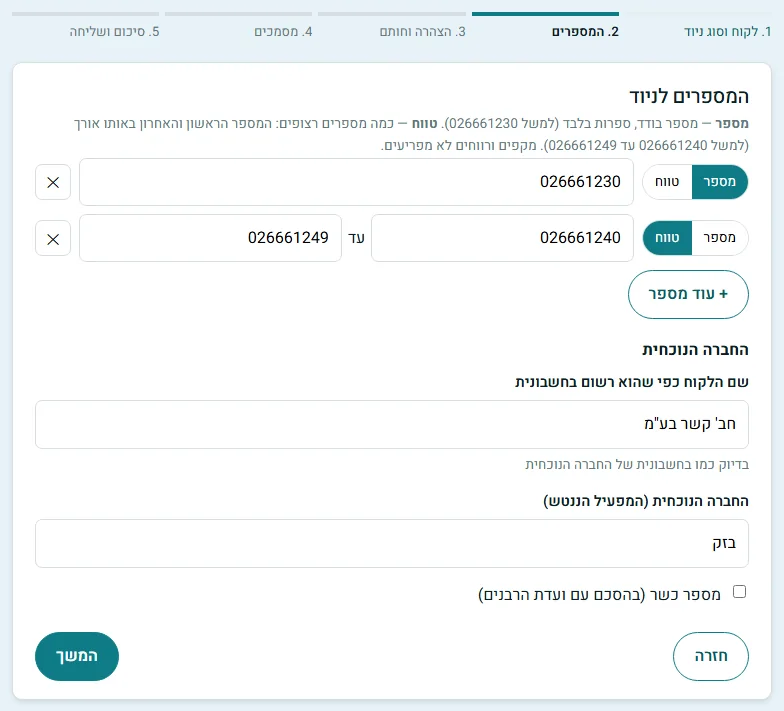
2. The numbers
- Each row is a single Number or a Range — choose with the button at the start of the row. For a range, enter the first and the last number, with the same length, for example 026661240 to 026661249. Dashes and spaces don't matter.
- + Another number adds a row, and ✕ removes it.
- Enter the customer name exactly as it appears on the current company's invoice, and the name of the current company.
- Mark whether it is a kosher number, and when porting to SIM or to virtual with SMS — also whether the number is currently with Hot Mobile. When porting to SIM, also enter which cellular extension to connect the number to.
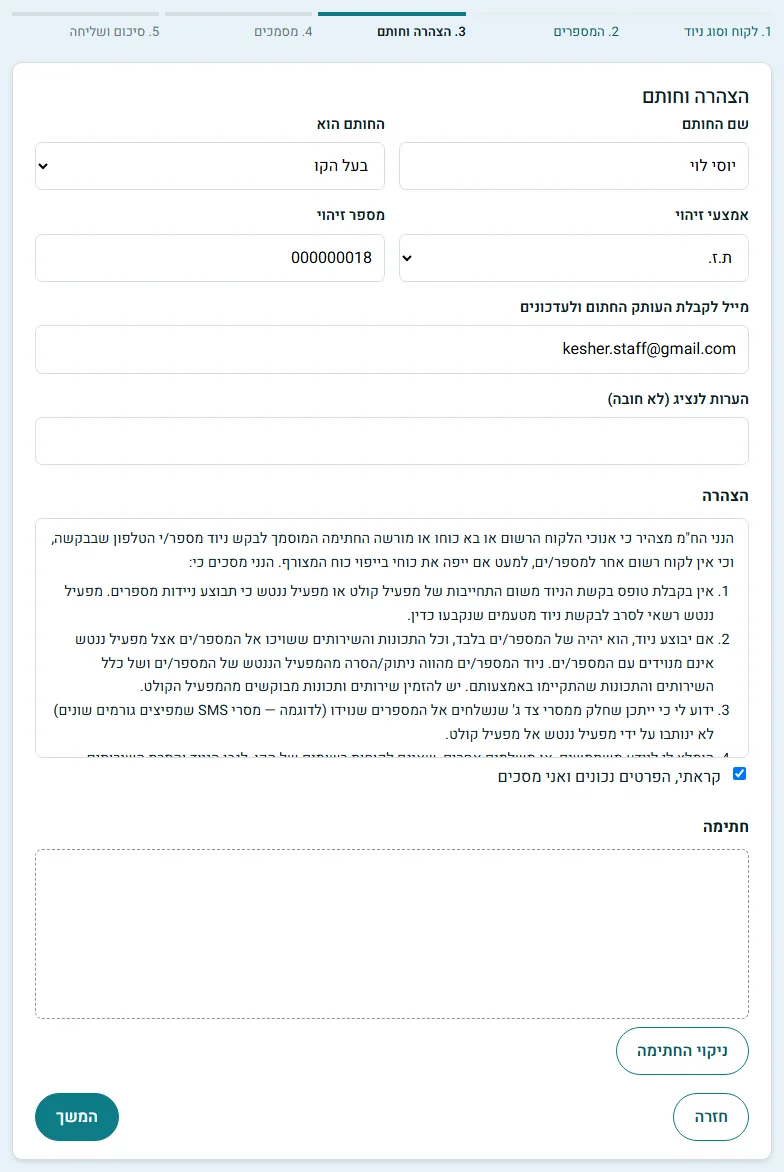
3. Declaration and signer
- Fill in the signer's details: name, whether they are the line owner, an attorney-in-fact or an authorized signatory, the type of ID (ID number, company number or passport) and the ID number.
- Enter an email address. The signed copy and the updates will be sent to it.
- Read the declaration, check I have read it, the details are correct and I agree, and sign in the signature box — with the mouse or with your finger. Clear Signature erases it, and you start over.
4. Documents
- Upload both sides of the ID document, and one or more invoices. PDF or image, up to 8MB per file.
- When there are several numbers, next to each invoice you mark which of them appear on it. If one invoice is marked for several numbers, or there is a number that is not marked on any invoice, the page asks whether that is correct. Confirm with "Yes, that's correct" and continue.
- An attorney-in-fact attaches a power of attorney, and a business customer with Hot Mobile attaches the Hot form (step 3).
5. Summary and submission
Check the summary and click Submit Request. The message "Request received" appears, with the ticket number.
There is no room for mistakes: an incomplete or inaccurate request is rejected. The customer name must be exactly as on the invoice, and the numbers — exactly as with the current company.
What happens next
- The request is opened on our side as a ticket. You can see its status in the Report a Problem window, in the My Reports tab: if you sent it from a signed-in account, you see it in the control panel, and if you sent it without signing in — in the same browser you sent it from. We will also update you by email.
- We check the request and the documents. If something is missing or needs correcting — you will get an email with the reason, and you submit a new request.
- A valid request is sent for processing, and at that moment the signed copy of the form arrives in your email.
- Porting a single number takes about half an hour on average, and a range of ten numbers — about an hour. Whether a range is ported as one range or as individual numbers is determined by the current company.
- You can schedule porting in advance, up to 7 days ahead.
- During porting there is a temporary interruption in service on the numbers being moved.
- We will update you when porting starts, when it ends, and if the current company returned an error. In that case, contact them, and after the problem is resolved, submit again.
- Porting moves only the number: services you had on the number with the current company do not move over, and porting does not cancel any debt or commitment to them.
a mobile number
- On a top-up line (a prepaid card), there must be a balance of at least ₪30 at the time of porting.
- Virtual porting also requires verification by phone call — we will send you the details after the request is checked.
- After porting, the number is active through the PBX only, and the mobile line and the SIM card are canceled.
- Some SMS messages that various senders send to the number may not arrive after porting.
What happens to the documents
The documents and the signed form are kept by us to handle the request, and are deleted 30 days after the request was sent for processing or rejected — together with the ID number, the address and the mobile number on the form. Only the numbers, the porting type and when the request was sent are kept.
Stuck? Does something on the screen not behave like in the guide? Write to us through the Contact Us page. We'll be glad to help, and also to hear what's missing from the guide.